Reverse Tunneling
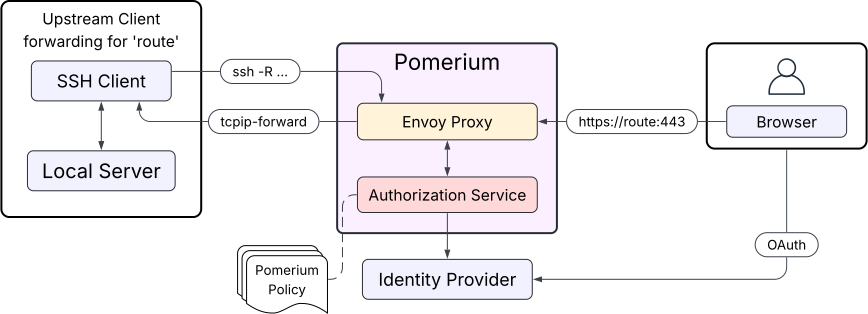
Any HTTP or SSH route can be configured to route upstream traffic through authenticated SSH clients using reverse port-forwarding.
When a route is in this mode, Pomerium will not route traffic for that route directly to upstream servers. Instead, SSH clients can connect to Pomerium and register themselves as upstream endpoints for the route (for as long as they remain connected and authenticated). Then, when a downstream client connects to the route, Pomerium will tell a connected SSH client to open a connection to the "real" upstream server via reverse port-forward.
This uses the Native SSH Access feature, and works best with the standard OpenSSH client.
Example Scenario
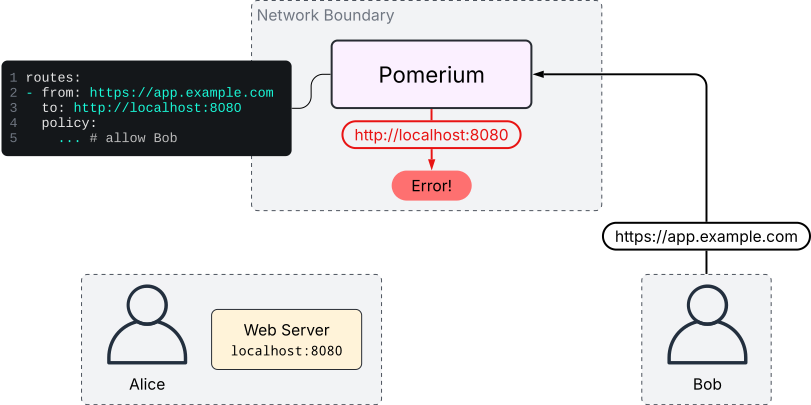
Suppose Alice is running a web server locally, and wants to allow Bob to connect
to it. Both Alice and Bob can reach a Pomerium server, but the Pomerium server
cannot reach Alice's local web server. If Alice tries to configure a route's
to address to http://localhost:8080, the Pomerium server will attempt to
connect to localhost:8080 from wherever it is running.
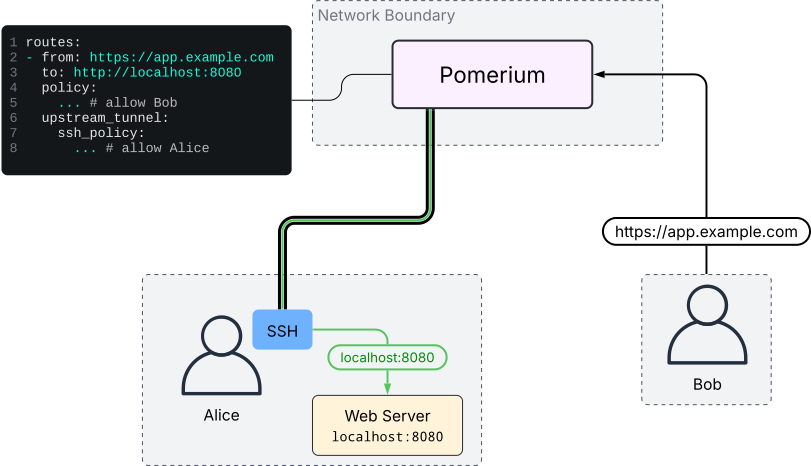
Instead, Alice can configure the Pomerium route with the upstream_tunnel
option. Here, a second Pomerium policy must be configured, ssh_policy. This
second policy controls who can connect as an upstream for this route. Standard
SSH policy rules can be used here; see
SSH Policy Criteria
for details.
Once the route is configured, Alice connects to the Pomerium server via SSH and
enables reverse port-forwarding with the -R flag (e.g.
ssh -R 0 pomerium.example.com, assuming standard OpenSSH) and authenticates
successfully. Then, Bob connects to the route. Pomerium will request that
Alice's SSH client open a connection on localhost:8080. The SSH client can
reach the local web server, so the connection can be established.
Setup
-
Follow steps 1-3 in Native SSH Access - Setup to configure the SSH address, host keys, and user CA key. Note that SSH routes are not necessary to be able to use this feature, so steps 4 and 5 can be skipped.
-
Enable the
ssh_upstream_tunnelruntime flag:config.yamlruntime_flags:
ssh_upstream_tunnel: true
Detailed Usage
Connecting With an SSH Client
Reverse tunneling is only enabled when connecting to Pomerium without a route, the same way as the Internal CLI is accessed (see Using the Internal CLI).
It is not necessary to interact with the Internal CLI in reverse tunneling mode
(you can pass -N to tell ssh not to run any commands at all), but by default
the tunnel status TUI will be displayed when no command is given and -R was
set on the command line.
For example, if your Pomerium server is hosted at pomerium.example.com, your
ssh command would look like:
$ ssh -R ... pomerium.example.com
#        ^^^ see below for '-R' syntax
When connecting to a SSH route directly, any port-forwarding requests are sent directly to the upstream SSH server, and are not interpreted by Pomerium. For example, the following command does not enable reverse tunneling:
# The upstream server for the route 'some-ssh-route' handles the -R request here
$ ssh -R ... some-ssh-route@pomerium.example.com
OpenSSH Client Syntax
Reverse port-forwarding in OpenSSH is controlled with the -R flag. The syntax
of this flag can take several forms, following a similar structure:1
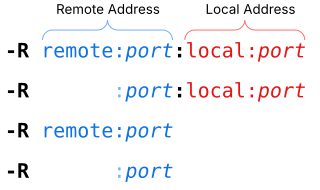
The argument to -R consists of either one or two name:port addresses,
separated by a :. The remote address (first) describes the client's request to
the server. The local address (second), if present, is used only by the client
to control the destination of an incoming request. The local address is not
sent to the server.
If the local address is present, the server has no control over the destination address. The SSH client forwards the request to the hostname and port given on the command line. If the local address is omitted, however, the server requests the destination address for each new connection. This is referred to as "dynamic port forwarding".
When the local address is omitted, the remote port should always be set to 0. The opposite is also true; when providing a local address, the port should not be 0. This is Pomerium-specific and is covered in more detail further below.
OpenSSH also supports unix socket forwarding, which is not supported by Pomerium at this time.
How Pomerium Interprets the Remote Address
Each instance of -R on the command line makes a separate request2 to
the server, containing the remote name:port address. The server is free to
interpret this in an application-specific way. In Pomerium's case:
-
The
namerepresents a route hostname. This is the host part of thefromURL in a route, not including the scheme. -
The
portfunctions as a protocol selector. If the port is443, it will match HTTP routes. If the port is22, it will match SSH routes. These are fixed values and do not change based on the ports Pomerium is listening on.3
Dynamic Port Forwarding
Dynamic port forwarding is enabled only when the client requests port 0 in
the remote address.4
This mode allows a single SSH client to port-forward multiple routes at the same time, and not require manual updates when the Pomerium configuration changes.
When dynamic port-forwarding is used, the name section of the remote address
will accept a glob pattern to match route hostnames. All matching routes for
which the current user is authenticated will be handled by the client.
If multiple to URLs are configured in a route, Pomerium will load-balance
between them by alternating which destination host:port is requested in a
round-robin strategy. This only applies when dynamic port-forwarding is used.
Exercise reasonable caution when using dynamic port-forwarding. Treat this as you would any other network tunneling tool. Always verify the SSH host key fingerprints of the server you connect to!
Static Port Forwarding
When a local address is present, new connections will always be routed to that
address and port. In this way, the local address and port can differ from the
address and port configured in the route's to URL. The to URL is not
completely ignored, however: it is used to configure the expected upstream
protocol for the route, and
Host Header Settings still apply.
Syntax Examples
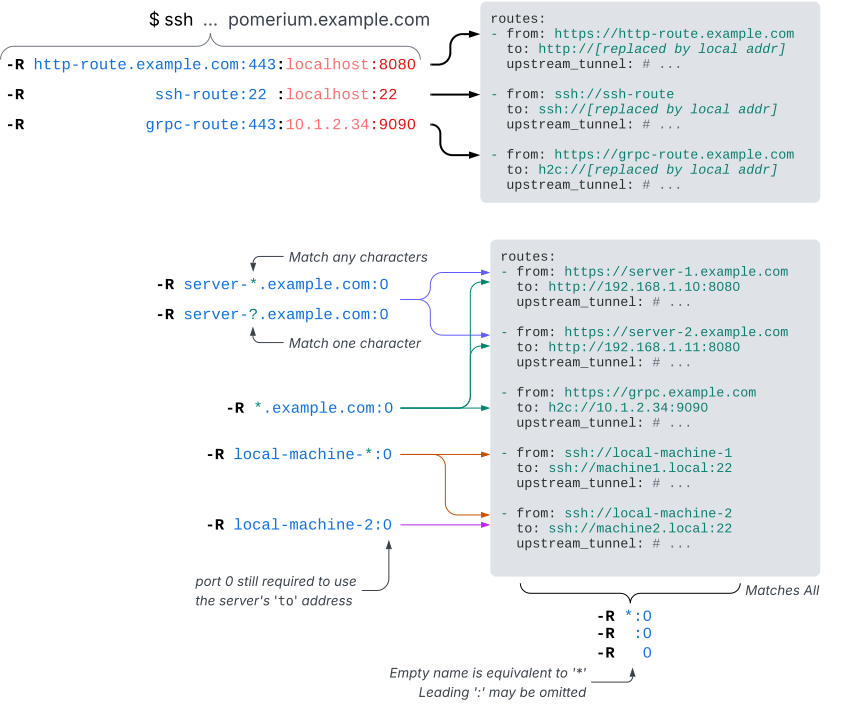
Operating the TUI
The screenshots in this section are using the following route definitions:
routes:
  - from: https://https-route.example.com
    to: http://localhost:8080
    allow_public_unauthenticated_access: true
    upstream_tunnel:
      ssh_policy:
        - allow:
            and:
              - email:
                  is: user@example.com
    health_checks:
      - http_health_check:
          path: "/health"
        timeout: 0.5s
        interval: 10s
        unhealthy_threshold: 1
        healthy_threshold: 1
        always_log_health_check_success: true
        always_log_health_check_failures: true

  - from: https://grpc-route.example.com
    to: h2c://localhost:8079
    allow_public_unauthenticated_access: true
    upstream_tunnel:
      ssh_policy:
        - allow:
            and:
              - email:
                  is: user@example.com
    health_checks:
      - grpc_health_check: {}
        timeout: 0.5s
        interval: 10s
        unhealthy_threshold: 1
        healthy_threshold: 1
        always_log_health_check_success: true
        always_log_health_check_failures: true
When connecting to Pomerium as a reverse tunnel upstream, the tunnel status TUI will be displayed by default.
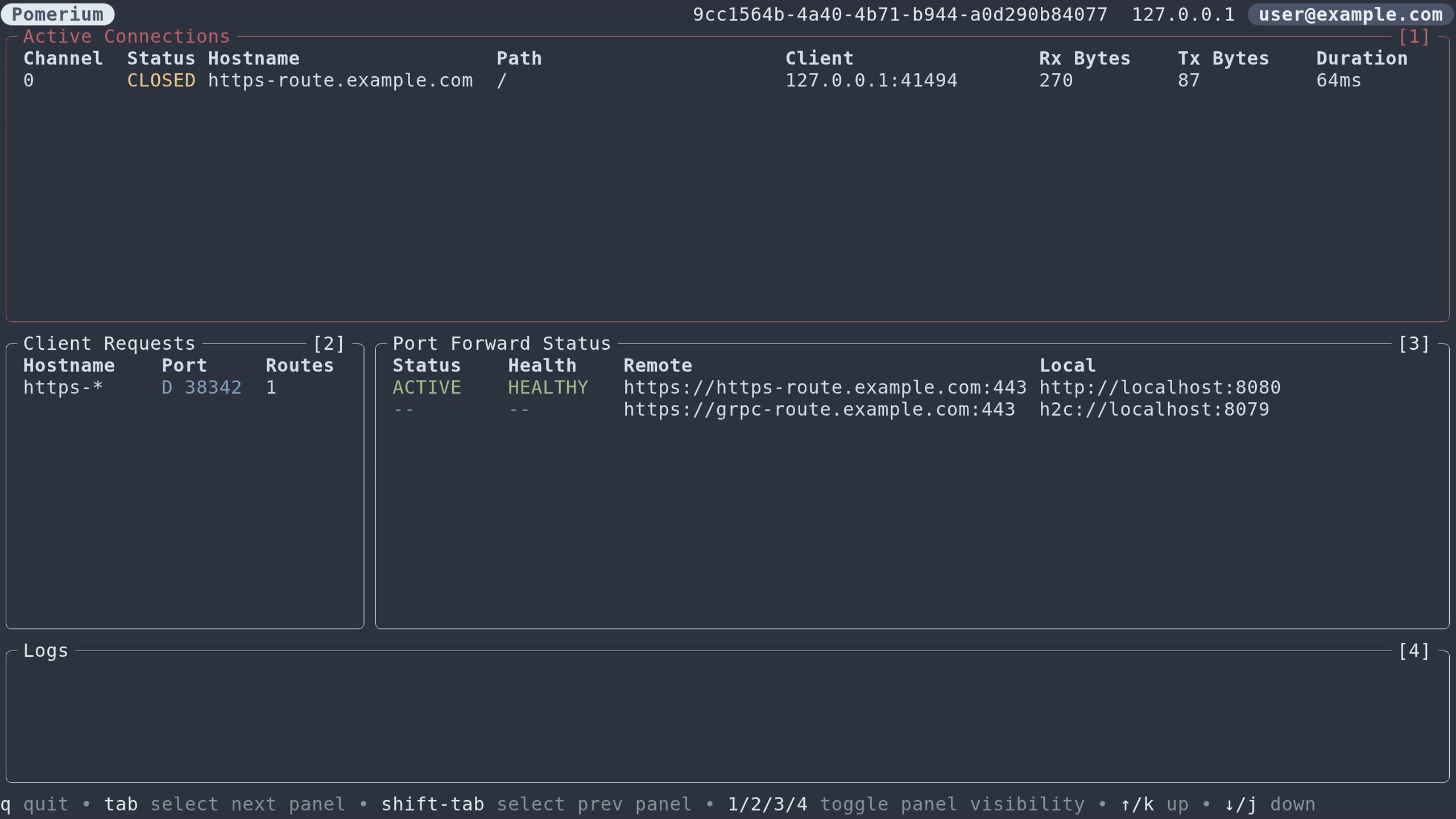
Active Connections
The Active Connections panel displays live connections through the reverse tunnel. For HTTP routes, the hostname and path in the request will be displayed. For SSH routes, the route name will be displayed.
The downstream client IP is also displayed in this panel, along with bytes sent through the tunnel in both directions (Rx = downstream to upstream, Tx = upstream to downstream), and the duration of the connection. Connection stats are updated periodically while the connection is open, and immediately when the connection is closed.
Client Requests
The Client Requests panel shows how Pomerium interpreted each -R flag passed
on the ssh client command line. Each instance of -R will show up as a separate
row in this table.
The Hostname column shows the name section of the name:port syntax for the
remote address. If the name was *, or empty, the request will show (all).
The Port column shows the port section of the name:port syntax for the
remote address. If the port was set to 0 on the command line, indicating dynamic
port forwarding is enabled, it will be displayed as a random number, prefixed
with D, for example:
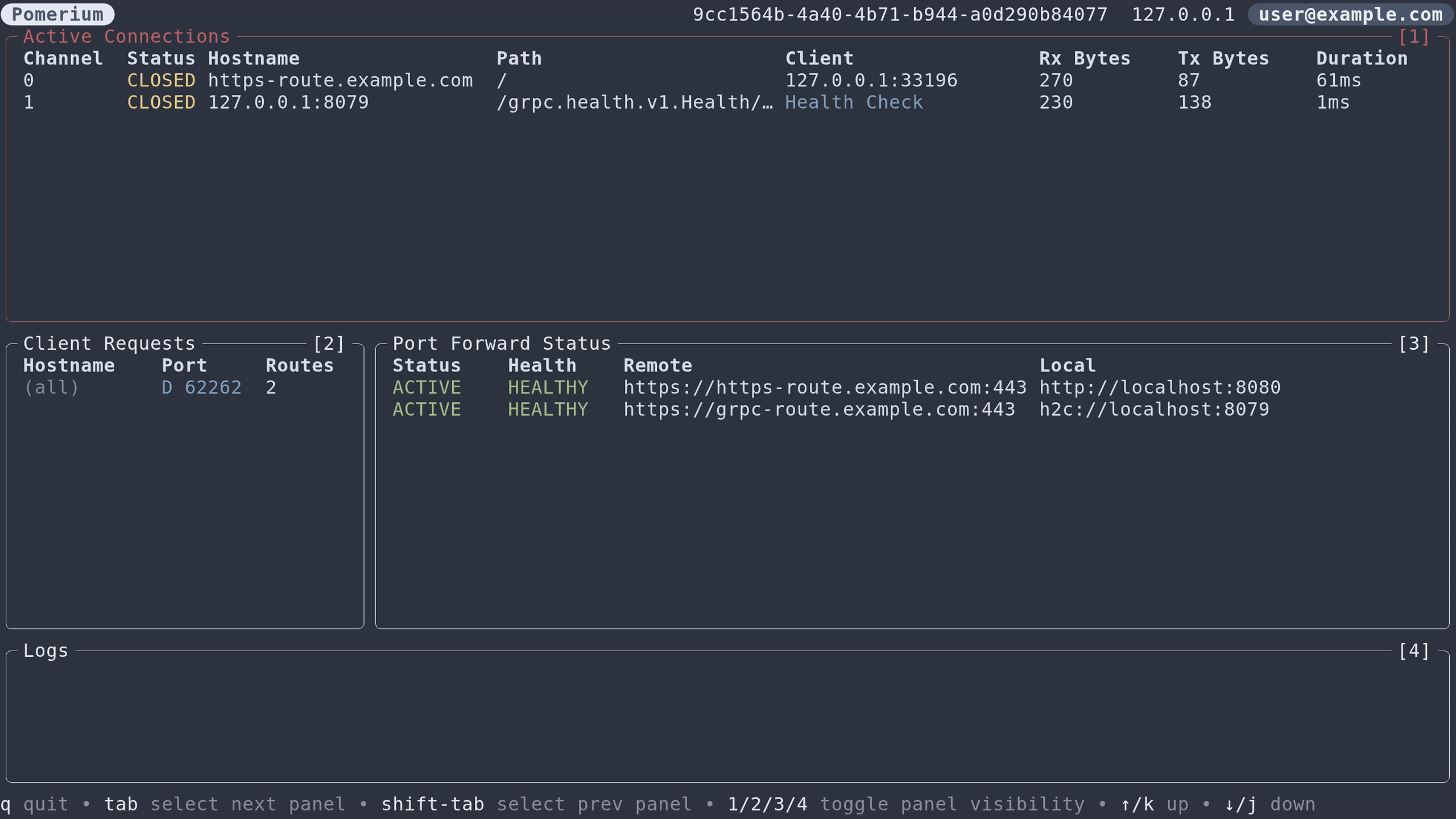
Dynamic port numbers are known to the SSH client. They can be used to identify specific requests to deactivate them at runtime using the escape console. See OpenSSH Escape Commands.
The Routes column shows how many routes (of those displayed in the
Port Forward Status table) were matched by each request.
Port Forward Status
The Port Forward Status panel displays routes with upstream tunneling enabled
(via the upstream_tunnel route option) that the current user is authorized to
connect to as an upstream endpoint (based on the route's ssh_policy). Routes
that the user would not be authorized for are not displayed in this table,
whether or not the user's request patterns match those routes.
The Status column shows whether that route is matched by any of the client
requests. If it is, it will display ACTIVE.
For routes with health checks enabled, the Health column shows the current
state of those routes as determined by the configured health checks. This state
is either HEALTHY, DEGRADED, or UNHEALTHY (see
Envoy docs).
If the route is currently failing its health checks, it will show INACTIVE in the Status column.
Logs
The Logs panel shows system messages and warnings.
Non-interactive clients
The TUI will be automatically disabled for non-interactive clients. To disable
it while running an interactive client, pass the -N flag to ssh.
Terminal Feature Support
The TUI has full mouse support for terminals which support it (all modern terminals do).
Some features, such as the ability to copy to the clipboard, are not supported by all terminals. If your terminal supports this feature (see here for an unofficial support matrix), you will have the ability to copy URLs to the clipboard in the right-click context menu of some table rows.
Compatibility
This feature can be used with any HTTP route, as well as SSH routes. The tunneling mechanism is transparent to any protocols running on top of TCP, so no special considerations are needed to make use of TLS, GRPC, etc.
UDP is not supported.
Advanced Usage
Health Checks
If routes have health checks defined, the health check requests originating internally within Envoy are also routed through the tunnel. Downstream requests will then be able to fail-fast when Envoy knows the real upstream is unhealthy. If multiple SSH upstream endpoints are connected, Envoy can prioritize routing traffic to healthy endpoints (subject to Panic Threshold configuration; see also Supported Health Checks Parameters).
High Availability
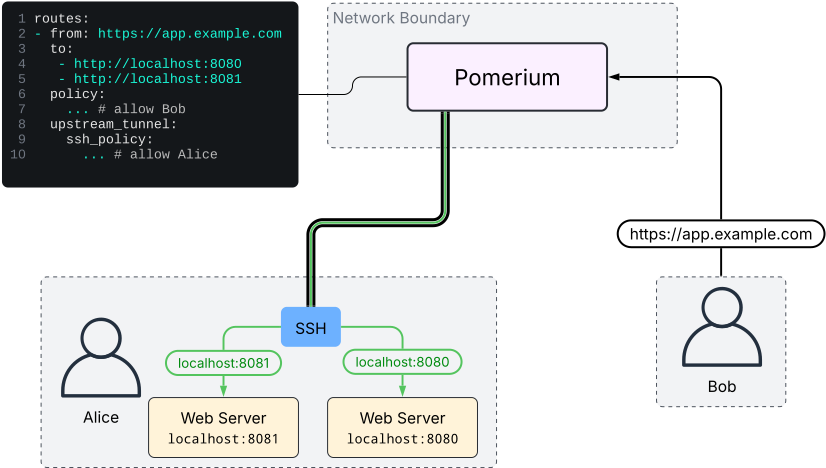
Multiple SSH client instances can connect to Pomerium and register as upstream endpoints for the same route. Envoy will load-balance between all connected SSH clients. The following diagram illustrates this:
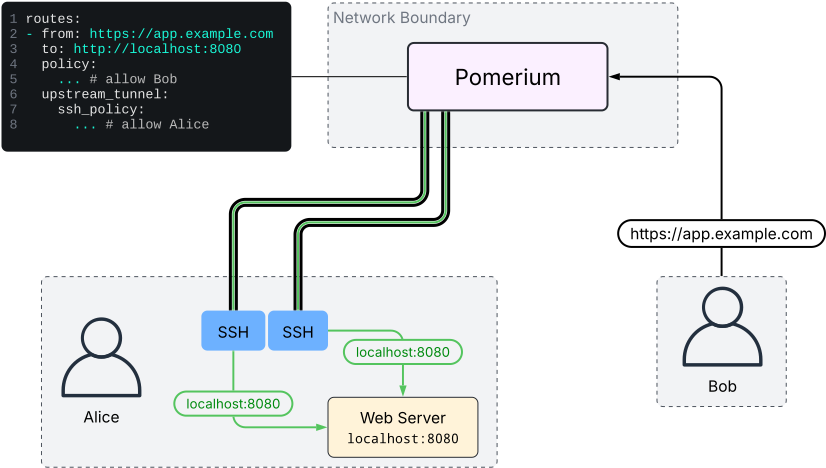
In addition, multiple to addresses in a Pomerium route can be used to
load-balance to the real upstream servers, through any connected SSH clients:
(Note: this works only in conjunction with dynamic port forwarding)
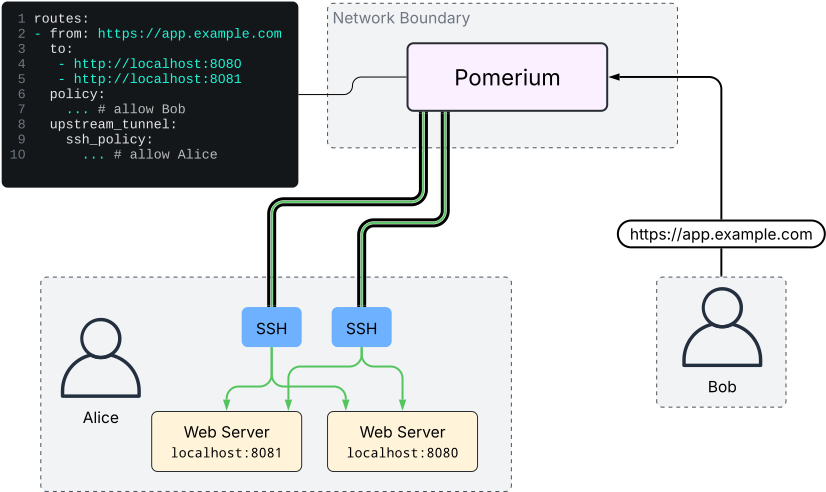
These strategies can be combined, resulting in Pomerium load balancing between SSH clients, then each SSH client load balancing between upstream servers:
(Note: this works only in conjunction with dynamic port forwarding)
Deploying as a Service
The OpenSSH client can be run as a headless service to manage port-forwards in the background.
The following example systemd user service will connect to a Pomerium server and request to port-forward all authorized routes. It will restart upon connection loss.
[Unit]
Description=Pomerium SSH Reverse Tunnel Client

[Service]
Type=forking

# -v = verbose (debug1); new connections on forwarded ports will be logged
# -y = send logs directly to syslog
# -f = fork after authentication; this is used in conjunction with Type=forking
#      to signal to systemd that the service is ready.
# -N = do not run any commands, only forward ports.
ExecStart=/usr/bin/ssh -vyfN -R 0 pomerium.example.com
Restart=on-failure
TimeoutSec=60s
If you do not have an active Pomerium session associated with your ssh key, or
the session is expired, the service will remain in startup and wait for the
session to be renewed. You can either check the journal logs for the service to
obtain the sign-in URL, or run another ssh command separately (e.g.
ssh pomerium.example.com -- whoami) and sign in, after which the service will
automatically be authenticated and continue on its own.
If your routes use health checks, the health check connections will show up in the debug logs too. This could be noisy depending on how many routes/health checks you have configured.
In the above example, failed health check errors will be logged with -v.
Without -v, they will not show up unless -y is also used.
OpenSSH Escape Commands
The OpenSSH client has a built-in system for running basic commands during an
active session. This can be used to, among other things, modify port-forwarding
requests without needing to restart the ssh client. Details on how to use this
can be found in the "Escape Characters" section of man 1 ssh.
(online docs here)
Troubleshooting
'-R' Syntax
Common mistakes that can be made with the -R syntax:
1. Dynamic port forwarding request mismatch
For each -R request, both the Pomerium server and the SSH client must agree
whether that request should use dynamic port forwarding or not. This is
controlled by the syntax of the -R argument:
- Pomerium enables dynamic port-forwarding when the remote port is 0.
- The SSH client enables dynamic port-forwarding when the local
host:porthalf of the-Rargument is omitted.
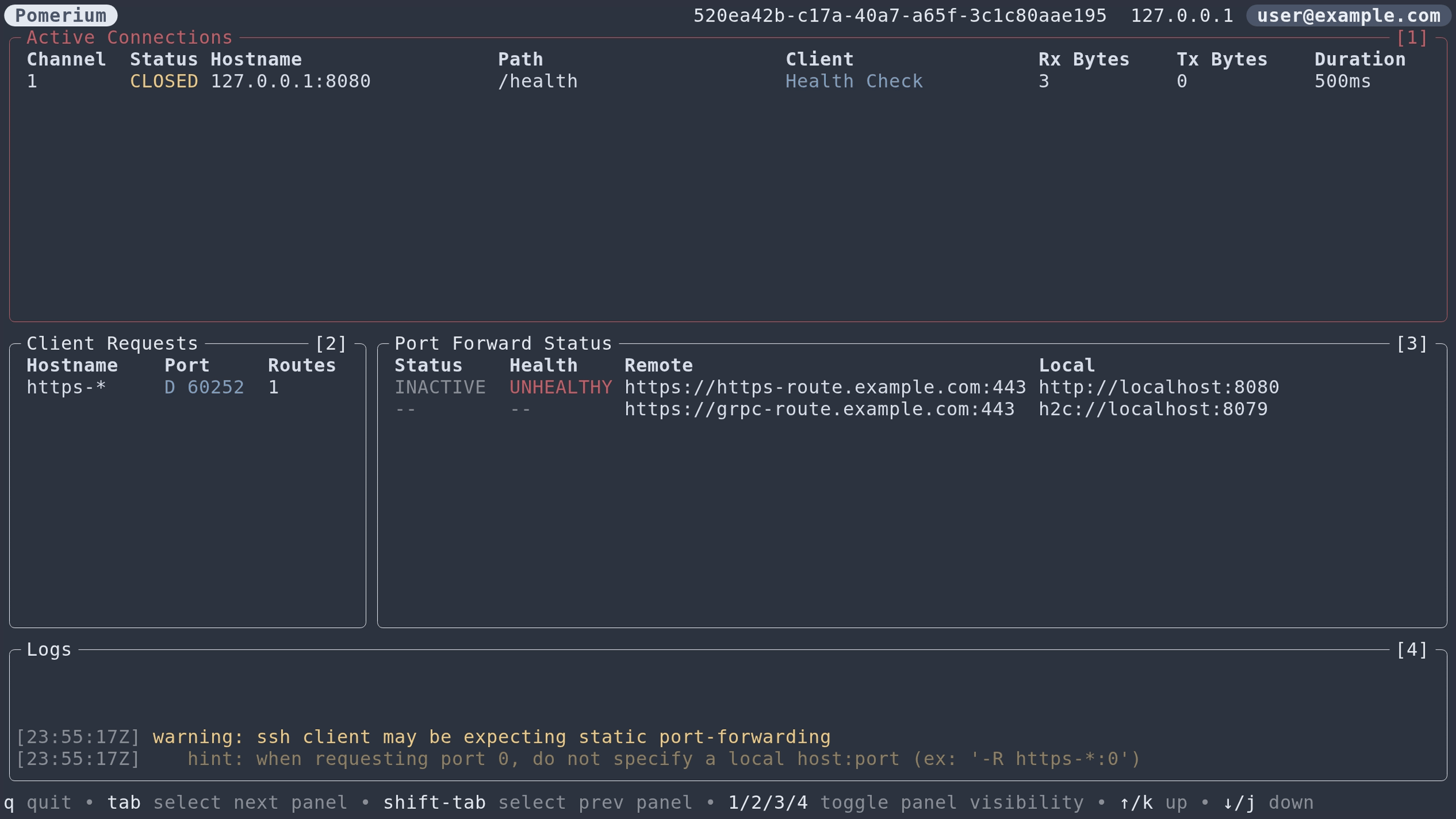
If the remote port is 0, but a local host:port is also set, Pomerium will be expecting dynamic port-forwarding, but the local ssh client will not be. This will cause downstream clients (including internal health checks) to time out.5 The TUI will also display a warning with hints on how to fix the command:
ssh -R https-*:0:localhost:8080 example.com
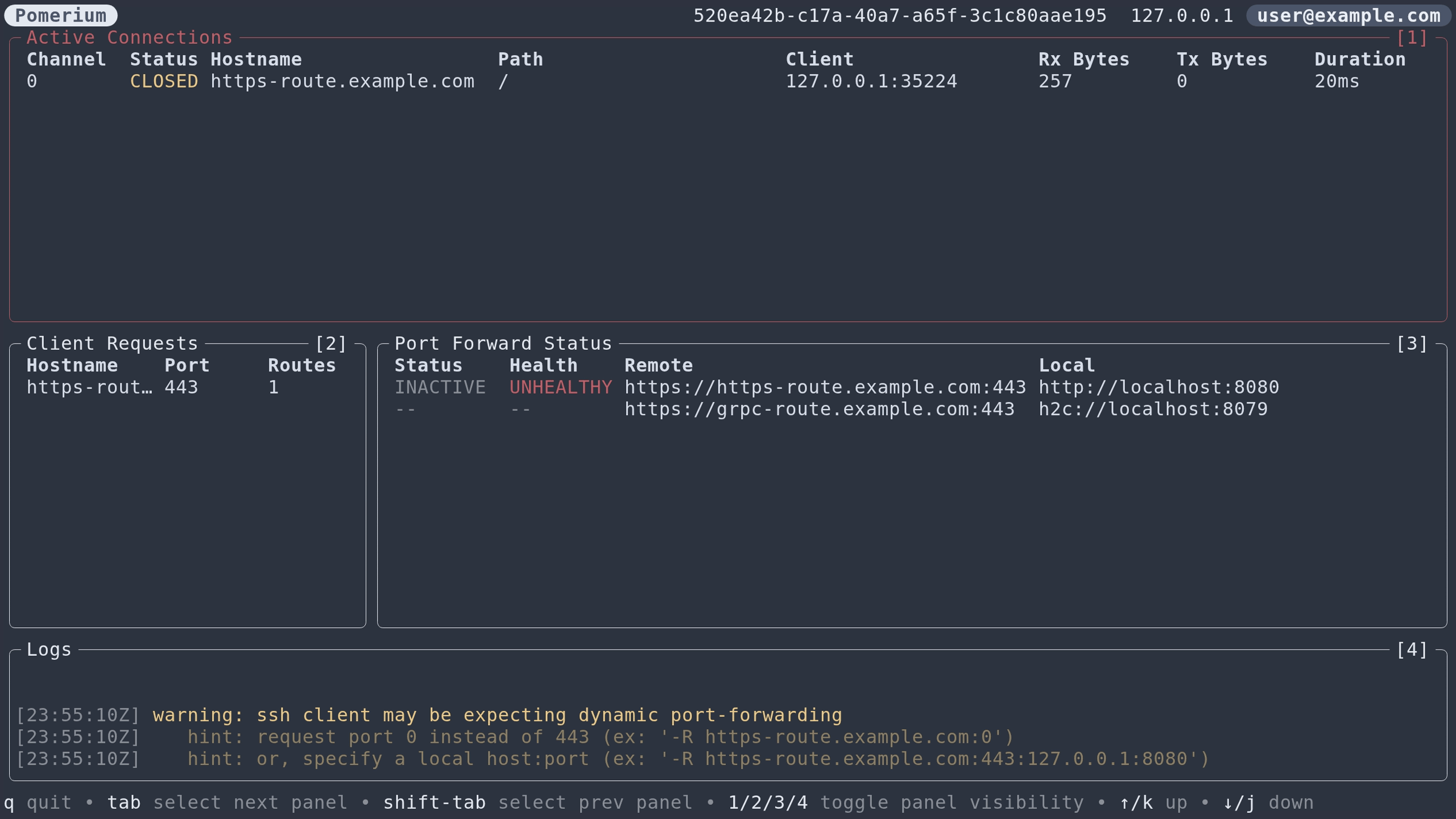
If the remote port is not 0, and the local host:port is omitted, then the local ssh client will be expecting dynamic port-forwarding, but Pomerium will not be. This will result in immediate downstream errors (not timeouts). The TUI will also display a similar warning:
ssh -R https-route.example.com:443 example.com
2. Incorrect wildcard usage
Wildcards (* and ?) in the remote address are only functional when remote
port 0 is also set. A request such as -R *.example.com:443 will match a
Wildcard From Route of the
literal form "https://*.example.com".
When remote port 0 is set, * characters in these routes have no special
meaning, and are considered to be part of the hostname.
For example, the route from: "https://*.example.com", would be matched by:
-R *.example.com:0(*matches the*in the from URL)-R ?.example.com:0(?matches the*in the from URL)-R *.com:0(*matches*.examplein the from URL)